Showing posts with label Social Media. Show all posts

How to Create a Blog in Blogger.com with Gmail Account

Posted by Unknown

How to Create,Blog,Blogger.com,logo 

This post is only for those people  who create a blog with New Idea and They don't know how to create a blog in with blogger.com.
 
Blogger.com is an awesome product of Google.com, here you can share your write,opinion,picture,video free beside you also make money by many way such as Google adsense,media.net.etc..
 
There Are Very Interesting And Easy To Make Money With Your Idea and New Creation.

Feature of Blogger.com
01. Free blogging opportunities
02. Share your article,pictures,video etc
03. Unlimited space for share rticle,pictures,video (youtube,dailymotion)
04. Make money by blogging. etc
How to Create a Blog in Blogger.com:
01.Go to www.blogger.com.
02. Sign in here with your Google account (Gmail).
03. Choose your blogger profile.
04. Click on New Blog. (Left Side)
05. Now Give your Blog Tiltle & blog Domain name.
06.Share Your Post and Chose Temple From Features.

There are Any difficulty Then  Comment on Post I will Reply Shortly.

Thanks
Read More

Whats up Application for PC or Laptop ! ! (Windows 7/8/Vista/XP)

Posted by Unknown
Today we are providing an android app named Whats up App for PC or computer.Whats up App is a nice android app which lets you chat with your friend but you must have a working Internet connection. WhatsApp is a mega hit, so I thought it would be nice if you could use this iPhone or android app on your PC, so today you will learn how to download WhatsApp for PC? Use the following method to download and install Whats p App on PC.


How to download Whats up App for PC?


There are two methods to download WhatsApp for PC.
Method 1 to Download WhatsApp for PC
You need to download the apk file of app first; you can download it anywhere from the internet. There are many sites providing WhatsApp apk file downloads.

Method 2 to Download WhatsApp for PC


But if you skip this step then you must have a working internet connection to install WhatsApp for computer. So do whatever you want. Skip this step if you don’t want to download apk file of WhatsApp and proceed further.

How to Install WhatsApp on PC?


Now you need to download an android emulator. You can try Bluestacks, Intel AppUp or youwave but I suggest you todownload BlueStacks. Bluestacks emulator software for windows and Mac which lets you play Android apps on PC. Read our post about how to install and run Android apps on PC. Download BlueStacks from below link.
download After downloads Bluestacks, install in on your PC as you install other software or applications. Now there are 2 methods to install WhatsApp for PC or computer.

Download

Method 1 to Install WhatsApp on PC


You can install Whats up App on PC by using the apk file if – in step 1 you have chosen method 1; i.e. by downloading the apk files of Whats up App. You need to use the apk file that you have downloaded in step 1 from internet. So go to that file, open that with Bluestacks and it will be installed on your PC automatically.

Method 2 to Install WhatsApp on PC


However if you have chosen method 2 in step 1 and skipped he download then open the Bluestacks app and search for Whats up App by typing the exact keywords in the search bar. You will need an internet connection for that. After searching, install Whats up App by clicking on it. Now you have successfully installed Whats up App for PC.

How to run WhatsApp on PC or computer?


It’s really easy to run Whats up App after installing it on your PC. To run Whats up App on computer you will need to navigate to the file and it is simple. Just go to the folder named “apps” and you will find Whats up App in that folder. Then double click on Whats up App to launch the app. If you can’t find the “apps” folder, simply search apps in start menu.


Read More

How to Secure Your Facebook Posts

Posted by Unknown

Tutorial on Facebook Security, Secure Facebook Post / Photos

Since we have more readers from Facebook community, I always receive request to prepare tutorial on facebook security and teach how to make Facebook more secure, so people can not misuse our photos on facebook and unknown even don't see our personal photos.

It's not a matter of 4-5 points which can help to make your facebook account secure, hence I may take few days to complete full tutorial on Facebook security to keep your fb account secure.

Let's start with Basic point you need to keep in mind to keep your Facebook more private / secure.
In this tutorial We are not going to learn any additional settings, just basic keypoint you can remember to make your facebook profile more secure.

1) How to Secure Facebook Individual Post

Always check Facebook Status's security before posting any status or photo on your facebook wall.


  •  Status with "Friends" will make your status visible only among Friends, who are in your friendlist except "Restricted" friends.
  • If you want your status/Photo/Link open for all, you can make it "public" and through "custom" you can Hide your post from few selected friends.
  • By default, facebook gives "Friends of Friends" security, which means your posts will be visible to all your friends and all of their friends too.


2) How to Change Post Security If by mistake it posted with wrongsecurity

Sometimes we forget to follow instructions demonstrated in #1 and we wrongly post photo or status with "Friends of Friends" or "public" security.

It's quite easy to change this security at later stage

  • Click on Your Name on top left corner below "Facebook" Logo and notification area.


  • As shown in above image, click on security and change whatever it should be.
We will learn a lot regarding Facebook security in upcoming days and if all of u really wish this tutorial.

Kindly show your interest by Recommending this post. (Click below to Recommend)
Read More

How to Hide / Secure Facebook Friend list

Posted by Unknown


Although we are preparing Complete Tutorial on Facebook Security, we still need to understand How we can Secure our friends list??


Friendlist is very critical information of your profile. People can misuse if your friends list is open to all. It's not much difficult to hide your friends list from others.


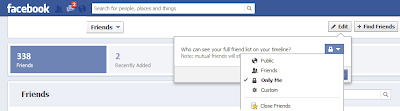
  • Click on Your Name below notification area and top left corner of your Facebook Profile
  • Click on "Friends" tab Just below your cover photo area

    Secure Friend list of Facebook profile


    • As shown on above illustration, Click Edit and choose "Security" for who can see your friend list
    • I always prefer to keep "Only Me' as security for my friend list, it means No One else can see my friend list
    Read More

    15 Best Ways To Increase Your Facebook Page Likes/Fans

    Posted by Unknown


    Top 15 ways to Increase your facebook page likes or fans. Actually One of the hottest things going in marketing right now is a Facebook Page and the first thing to do when you want to use Facebook as a marketing tool is to create a Facebook Fan Page of your product or business. After you are done with that, the second thing to do is to somehow bring fans there. The big question is ‘how to do that’??
    Well the answer is here in this article, as here we list Top 15 effective ways to get Facebook Fan page fans.

    Tagging Pages in your Updates:
    This one is simple. Just tag your Fan page (by @ sign) whenever you are updating your Facebook Fan Page’s status or are posting something and are adding a description.
    Put up a featured discussion in your LinkedIn group:
    If you don’t have a LinkedIn group for your industry, make one. It’s your way to demonstrate your expertise, thereby driving business to your company.
    This discussion can lead to opening the doors to a higher level of customer service that you might not have otherwise had.

    Link to your Facebook page on your LinkedIn profile:

    One of the best places to promote your facebook page do that is in the description of your current position. When you describe your position and the company, put a hyperlink to the fan page at the bottom of the description.

    If you don’t have a LinkedIn profile, you should get one. Linkedin is one of the best ways to network on a global basis and draw business to your company.

    Put your Facebook page on all printed (Outbound) Marketing:

    You wouldn’t send out marketing without your company name would you? So don’t forget a mention of your facebook page. All it takes is one line in a prominent location.
    Put your Facebook page on all Social Media (Inbound) Marketing:
    The same reasons apply here as your Outbound Marketing. It’s a way of “covering all your bases” and making sure that you reach the widest group of people possible. A great way to do this is by sending a tweet out every so often on Twitter asking your followers to also become your fans.


    Leverage Your Video Blog:

    Video blogs are also one of the hottest ways to connect with clients and prospects. YouTube allows you to annotate your video with links that you can use to link back to your facebook page. If your video starts to gain traction on YouTube this link can translate to significant inbound traffic to your fan page.

    Mentioning Your Facebook Page on Your Personal Profile:

    You can put a link to your Facebook page on your own Personal Facebook profile, so that any friends of yours that are interested in the niche of your Facebook page can like it. You can put that link in the About Me section with a little description about it.
    And make sure to add http:// to your Facebook Page’s link, because the www’s are not clickable on Facebook!

    Email Your Way There:

    Build awareness about your facebook page in your email signature by include a hyperlink to your fan page. When you do this every person you email will have a link to your facebook page, and over time you this will effect an increase your fan base.

    Let Your Website Do the Talking:
    You’re already adding value to your company website by having a blog section, so up the ante and mention your fan page in directly within your content. Don’t be afraid to come right out and ask people to join your Facebook page.

    Mentioning to Follow Me On Facebook Everywhere:
    This is one of the most effective and easy way of increasing the number of fans on Facebook page. Always include a clickable link at the end of your post, requesting the readers to become a Fan of your Blog/Website on Facebook.
    You should also add a ‘LIKE’ button either at the end or at the start of a post, as it will also make some readers become a fan. You should use this ‘Follow Me on Facebook’ on every other social networking website that you are on like StumbleUpon, Digg, Twitter, and even in your Email Signatures. Doing all these things will definitely increase your Facebook fans.

    Regularly Creating and Posting Creative and Targeted Content:

    You must have read it everywhere and I am going to say it again — “Content is the king!”. Always try to create good and targeted content in order to make new fans and keep the existing ones. If you have good content on your website, the readers will obviously like it after reading it and doing this would post your post on their walls. This post would then be visible to their friends and so there is a good chance that they might become your Fan too. If your fans share your posts, those posts would appear on their walls with a ‘Via your-fan-page-name’ and seeing that, your fan’s friend might also become a fan of your page.

    Like Exchanging with Admin of Other Pages:

    If you want you can also try doing like exchanging. Simply search Facebook Fan Pages in your niche which have a lot of fans and then contact their admins telling them that you will post a like of theirs on your Facebook Page and whether they would be willing to do the same for you. If you will like their page it will automatically appear on the left panel of your Facebook Fanpage, in the ‘LIKES’ section. If they also like your Facebook Fan Page then yours would appear on those pages too.
    There may be some Fan Pages whose admins may not agree for a link exchange. So you can offer them money if you want and pay them through PayPal, or Western Union.

    Using Facebook as a Fan Page:

    Changing your Facebook’s Personal Profile to your Facebook Page is also another effective option. You can do this from the option given on top-right side of your Facebook Page. When you click on ‘use Facebook as ‘your-fan-page-name”, you can start using Facebook as your Facebook Fan Page.This is a good way to bring in traffic to your fan page.
    After you have done that you can like other pages and can comment on their photos, links, statuses and videos. Make sure that those fan pages are in your niche but have a large number of Fans. Comment and communicate with the fans of that Facebook Page and always be sweet and friendly as this will bring them to your Facebook Page. This method is similar to getting traffic by commenting on other blogs.

    Running Contests on your Blog/Website:
    Contests and giveaways are a great way to get more fans and traffic. Simply keep the requirement for entering the Contest or getting listed for the Giveaway, to be or become a Fan of your Facebook Page. Many websites/blogs use this method and it also proves to be very good way of increasing your number of Facebook Fans.

    Connecting Facebook to Twitter:
    If you have a large following on Twitter, then connecting your Facebook fanpage to Twitter is also a great way of converting your Twitter followers into your Facebook Fans. You can do this by using any of the many applications  on Facebook that let you do it. After doing this your latest status updates, photos, links, notes or events on Facebook page will be tweeted out by your Twitter profile automatically to let your followers know what is going on, on your Facebook page.

    You can also put a link in your ‘About Me’ on Twitter as this might also make some new fans of your Facebook page. You can also create a background image for your Twitter profile, and then write something on the background image with a link to your Facebook page.
    Read More

    Apps for updating Facebook wall status via any mobile device

    Posted by Unknown
    In one of my posts in the blog, Facebook tips and tricks, I have mentioned that the Facebook status updates via any mobile device. Say you can impress your friends online by displaying the Facebook wall with "via iPhone 5". This is when you don't own that device, but you can show it online so that your friends believe that you are accessing and updating status of Facebook via iOS or Android.
    It is just a fun and not to betray or lie anyone. You can just write on your Facebook wall with the selection of the mobile device of your choice in the app, and that particular device name will be displayed below the status update.

    Now the main punch of all this is that you can download an app that can make this possible for you. In Facebook tips and tricks blog, I have mentioned that updating status can be done using websites , but in this post, let me share some apps that can be done through mobile.

    Now using the apps, if you have a device , say iPhone3, and you want to show in the updates that you are using iPhone5.
    Status Via : 

    This is a free app. With the use of this app, you can :
    • Post updates under the guise of another mobile device. 
    • Upto 100 listed options, you can post through like Air Force One, Alcohol,Amiga 500, Anfield Road Stadium, Angry Birds, Banana Phone, Batcave, Batmobile, Bed, and many more. 
    •  Added via in the latest version like HTC, Motorola, Sony Ericcson, etc. 
    • Speedy 


    To get this app: download link.


    Post Via:  Similar to above app, this app is also the another way to update status via the mobile device of your choice. 


    Read More

    Encrypt your Photos in Facebook and Twitter - using "Secret.li" App

    Posted by Unknown
    On internet it is very important to have your privacy maintained. Whatever we post on any famous site that will be watched by many visitors. Today "Facebook" is one of the most visited social networking sites daily. As we check our emails daily , we naturally log on to our Facebook account to see who has posted any new photo or what is going on in our friend's life.

    Have you thought of if any photos which we upload on these social media sites get used by others without our knowledge and if someone is using our information for their use without our information or permission, then it is our fault that we have not set the settings to private or confidential. 

    The "privacy Settings" in the Facebook and Twitter matters a lot or any other site matters a lot and is of much more importance. These information can be stolen and made a fake profiles out of any photos . To avoid all this, we have to encrypt any photo . 

    On Facebook, you may want to keep the photo to be for some specific time like 2 or 3 days or 1 week or so then you can make this possible by using an app called "Secret.li" app


    What is so exciting about "Secret.li" app ? 

    With this app, you can upload your photos from your iPhone without hesitation. You can also set the setting as to who can watch the photo on Facebook. This sharing on Facebook can be set for specific period of time. The decision of keeping the photo on Facebook is up to you. After some days if you want the photo not to appear on Facebook then it can be set if needed and this app will remove your photo after that day . 


    Secret.li   has features that :

    • Protect by using a safety filter

    • Share with Facebook friends for a limited time

    Choose which photo you want to show on Facebook , add some filters and share on FB. 

    Download the app from here: 


    Read More

    Now "AutoFill your Info" automatically with Facebook's credentials for payments via mobile

    Posted by Unknown
    Facebook is helping its users by introducing a new  feature called "AutoFill your Info". This is the latest feature introduced by Facebook's developers. Here is how this feature will work. 

    When a user buys any product online and wants to make payments using Paypal or any other mobile payment site, Facebook's new feature "AutoFill your Info", autofills basic details such as name, account number, address, telephone number, etc.


    When you tap on your smartphone, this option as shown in the image above. Subsequently, all your data is imported from Facebook and you can pay immediately. 

    To introduce this feature, Facebook has joined its hands with Paypal, Braintree, Stripe with two e-commerce sites, Jackthreads and Mosiac. 

    So when you pay using any of these sites then a button asks for "Autofilling" that will take your data from Facebook, as every user has an account with Facebook today. 


    However, this is still in the test mode.

    So whenever you want to make any payment via mobile, then leave it to Facebook's Autofill feature. All your data will be filled from Facebook automatically and then you can easily make your payments.
    Read More

    How to secure Facebook account with Facebook Login approvals and Code Generator

    Posted by Unknown
    To secure your Facebook account more and having a extra security level is a must today. To have this, you have to use Facebook's "Code Generator" setting. 

    What is a "Code Generator" ? 

    Code Generator is part of the Facebook app. When you set it , it creates a unique and different login code every 30 seconds, even if your internet is not working or you are not connected to net. For this code generator to work for your Facebook account, you should have"Login Approvals" turned on. 
     

    You can set Code generators for your Facebook app in iPhone or Android .


    For iPhone users: 


    • Login to your Facebook account 
    • Tap "More" 
    • Scroll down and tap "Code Generator" 
    • Do accordingly as instructed 
    • Collect and save your code

     Same steps can be followed for Android users too. 


    From PC when you want to set the "Code Generator", then follow the steps:


    • Log in to your Facebook account
    • Go to "Account Settings"
    • Select the tab"Security" 
    • Now click on "Edit"option of the "Code Generator"
    • Click "Enable" for generating code forAndroid or iPhone
    • Follow the instructions below 
    • Then when your Code is generated , click "Continue" on PC 
    • Then "Test Code Generator" box appears  where you have to enter the   code sent to your mobile device. 


    Now when you log in to your Facebook account from any device, just tap "Code Generator"and get your code. 

    This is how you can enable your highest security level for your Facebook account in Android or iPhone.


    Read More